Case study 06 2022–2024
Let an operator read any customer in their own language, then stopped making them ask
I designed live translation for a live-chat app that support operators use. The customer writes in their own language, and the operator reads it in theirs. I designed it twice. The first version took about four hours. The second one detects the language before the operator even asks.
It works on Android and iOS. The first version came out in 2022, and the second in late 2023 and early 2024.
Overview
The problem
Customers write in any language, but each operator reads one. A client needed translation the same day. A year later, operators still had to open a menu, detect the language and then translate. That was three taps for every chat, while the customer waited.
What I did
Version 1: a translation banner, with loading, translating and failure states, that works with two different translation engines. I designed it in about four hours. Version 2: the banner appears by itself when a chat starts, with the language already detected. One tap translates, and a language list fixes a wrong guess.
What happened
Both versions came out, and version 2 is the current one. Operators used it hundreds of times on mobile in a two-week period, and more on the web, by the team’s count. Operators found it very useful.

- 4 hours to design the first version, because a client needed it that day
- 2 engines the company’s own AI engine, or any other engine, using the business’s own account key
- Hundreds of uses on mobile in a two-week period, by the team’s count
- Role
- Product designer, from start to finish. The only designer on it, for both versions and both platforms.
- Team
- 6 people including me, product, and the operator app’s engineers. The engineers chose the engines.
- Timeline
- Version 1 in 2022. Version 2 in late 2023 and early 2024.
- Platform
- Android, iOS
The problem
Version 1 worked, but it asked a lot. To read a customer, an operator had to find the feature, detect the language and then translate. They did this for every chat, while the customer waited.
Before: three taps per chat

Open the menu, detect the language, then translate
After: one tap

The language is detected before the operator reads a word
The customer never sees a translation. They keep writing in their own language. A business chooses the translation engine once, on the web. With the company’s own engine, nothing leaves the company. With another engine, the business uses its own account key, and accepts how that engine handles data.
What shaped it
-
A same-day deadline
A client needed it that day. So version 1 had to be a banner that engineers could add to the chat screen as it was.
-
Two engines, one feature
The business chooses the engine. The operator shouldn’t need to know which one it is.
-
The same as the web
Everything the website offered had to come to mobile, without a separate design for each platform.
-
Detection can be wrong
Some languages share words, so the app can guess the wrong one. The design could never fully trust its own guess.
How I approached it
Three steps, a year apart.
-
Build what the deadline allowed
I designed version 1 in about four hours. It was a banner on the chat screen as it was, with loading, translating, waiting and done states. It also had clear failure messages, for a language that isn’t supported and for a translation that failed.
-
Let a year of operator feedback decide version 2
I looked at many translation apps for ideas, but that changed nothing. Operator feedback did. What they asked for most was for the app to detect the language by itself. So the engineers built new detection features to make that possible.
-
Compare both extremes
-
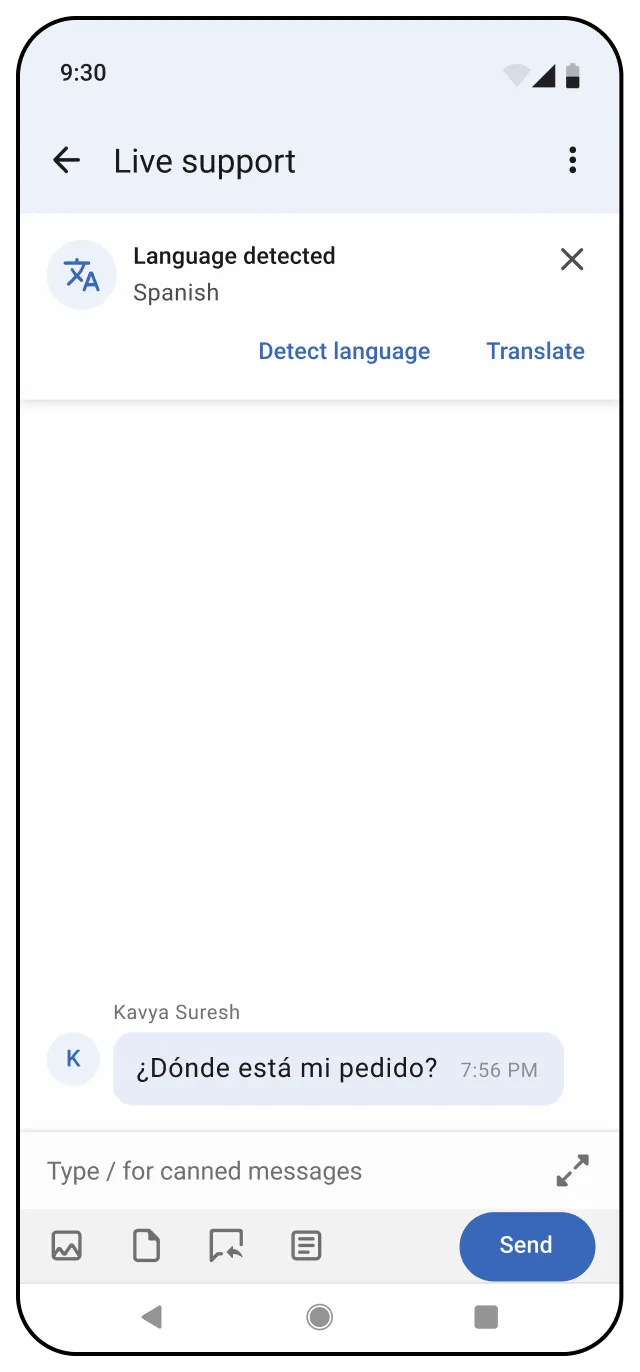
Keep the manual banner as the only way
It works, but it makes the operator do something the machine could do, in every chat. Operators said so for a year.
-
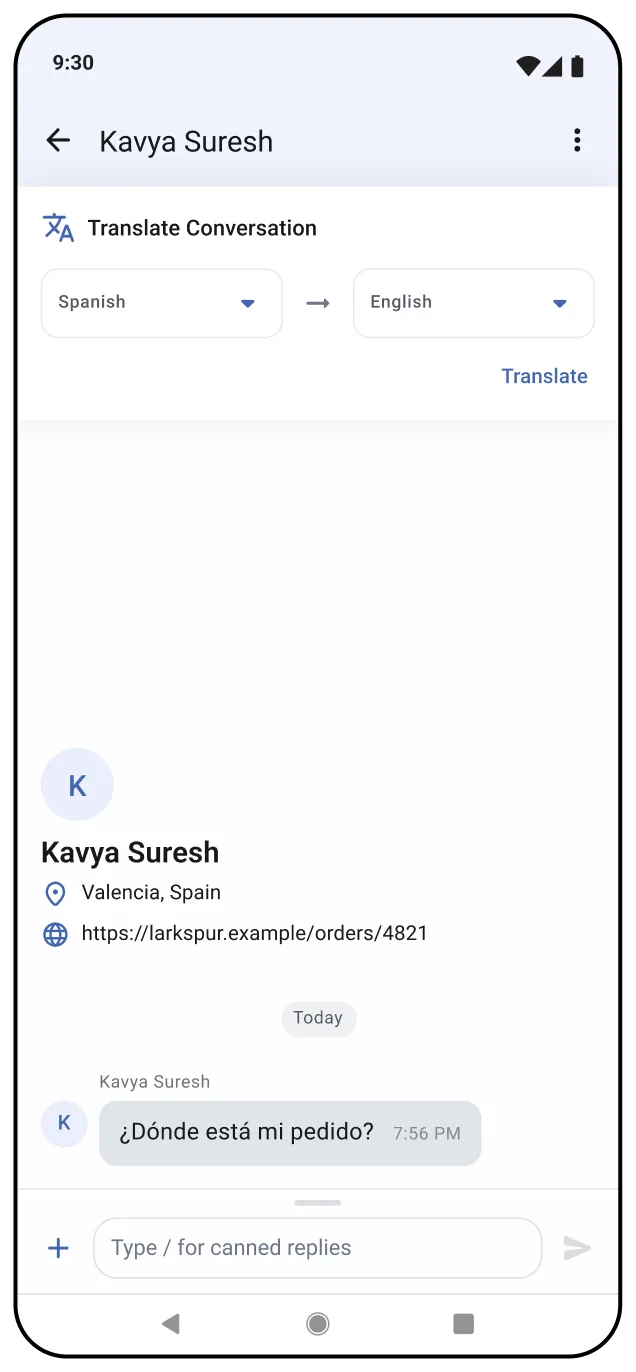
Automatic only, with no manual switch
Detection can be wrong when two languages share words. Without a switch, the operator would be stuck reading the wrong language.
-
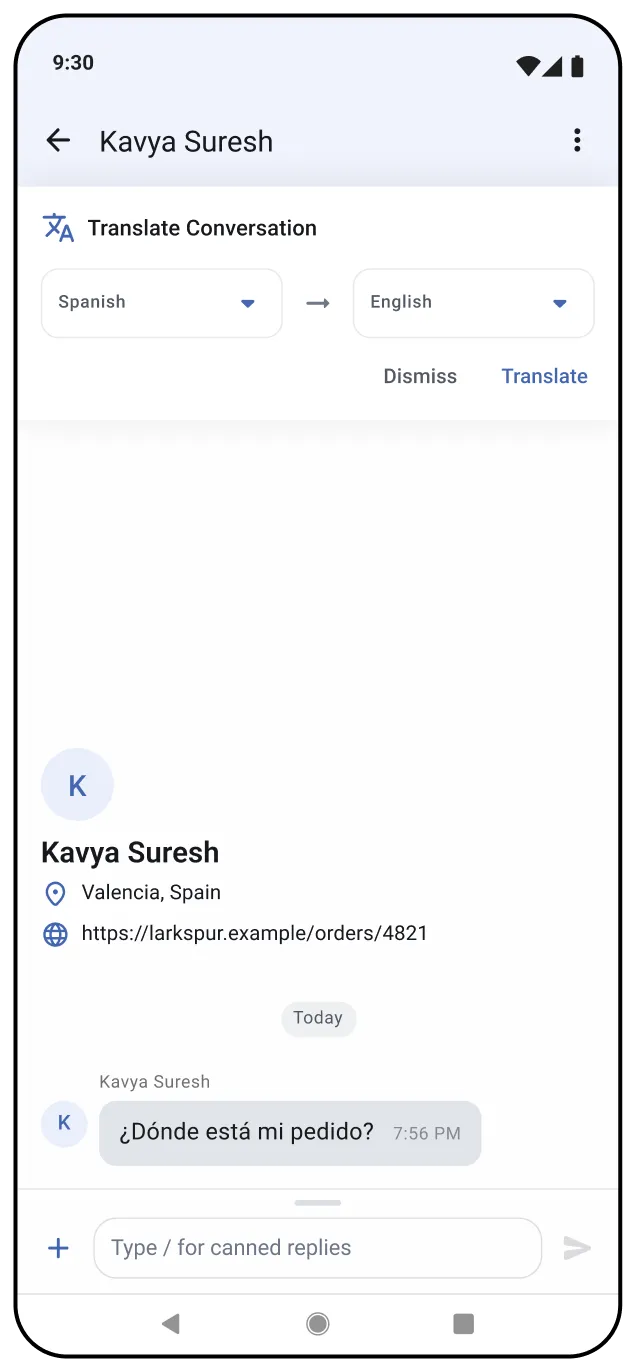
Detect first, translate with one tap, and keep the switch
The banner arrives with the language already detected. One tap translates the rest of the chat. And you can always change either language.
-


Read more: more detail, the full story 1 min
The wording, step by step. The banner went through seven versions. “Want to translate?” became “Need to translate?”, and “Detect language” became just “Detect”. The final version replaced the question with two languages and an arrow.
Where each version was designed. Version 1 was designed for Android first, in light and dark, with prototypes and more than a hundred design iterations. iOS followed with the banner, a way to dismiss it, the language list and a main actions menu. Version 2 was designed on Android, with the manual and automatic flows, the translate banner and a dark theme. The business’s engine setting lives on the web and applies to both.
Bringing it to mobile. Bringing everything from the web to mobile is the usual challenge for this product. This time it went smoothly, with no pushback.
What I designed
It’s one banner with two ways in, its states, and a way to fix it when detection is wrong.
- Two ways in
- The banner and its states
- The language list
- Dark theme
- Engine choice, on the web
The banner, part by part

-
What it’s for “Translate Conversation”, with the translate icon.
-
The customer’s language Detected before the operator has to trust it, so a wrong guess is easy to spot.
-
Which way the words go The arrow between the two languages.
-
The operator’s language Tap it to open the language list.
-
Dismiss, or Translate Translate starts translating the rest of the chat.
Redrawn for this site.
Two ways in, one banner

Manual: open the chat menu, then tap “Translate chat”

Automatic: the banner appears when the chat starts

Translating: the message itself changes language
- When you tap Translate, a loading line runs along the top. Then the banner says “Translating Conversation”, with a Stop button.
- The message itself changes language. There’s no extra line under it.
- If you dismiss the banner, the translation keeps running, because the operator wants to read the chat, not manage a banner. To stop it, open the chat’s ⋮ menu.
When the guess is wrong, and in the dark

The language list: search, with each language’s own name first

The same banner in the dark theme
- The failure messages from version 1 stay clear (“language not supported” and “translation failed”). The worst thing a translation feature can do is say nothing.
- The engine choice is set on the web, and it applies to both platforms. There’s no mobile screen for it.
Fewer words, version by version
First · V1

Shorter · V3, V4, V6

Clearer · V5, V7, Android V2

Shipped · Final

Each version used fewer words, while keeping the meaning. In the end, the question disappeared completely. Only two languages and an arrow were left.
How an operator reads a customer
From a message in Spanish to reading it in English, in the order it happens.
-
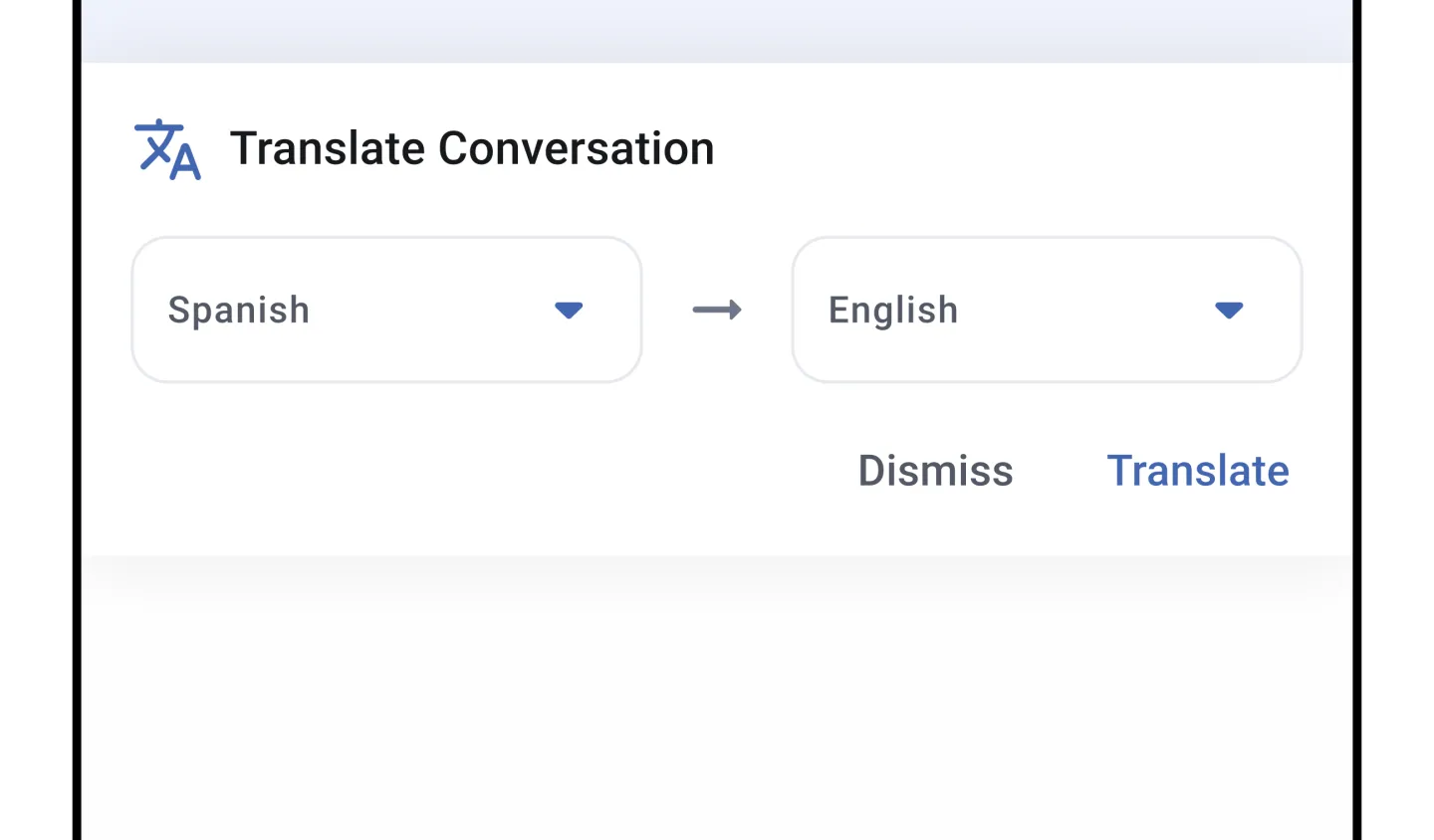 A chat arrives in Spanish
The banner is already there, with Spanish detected.
-
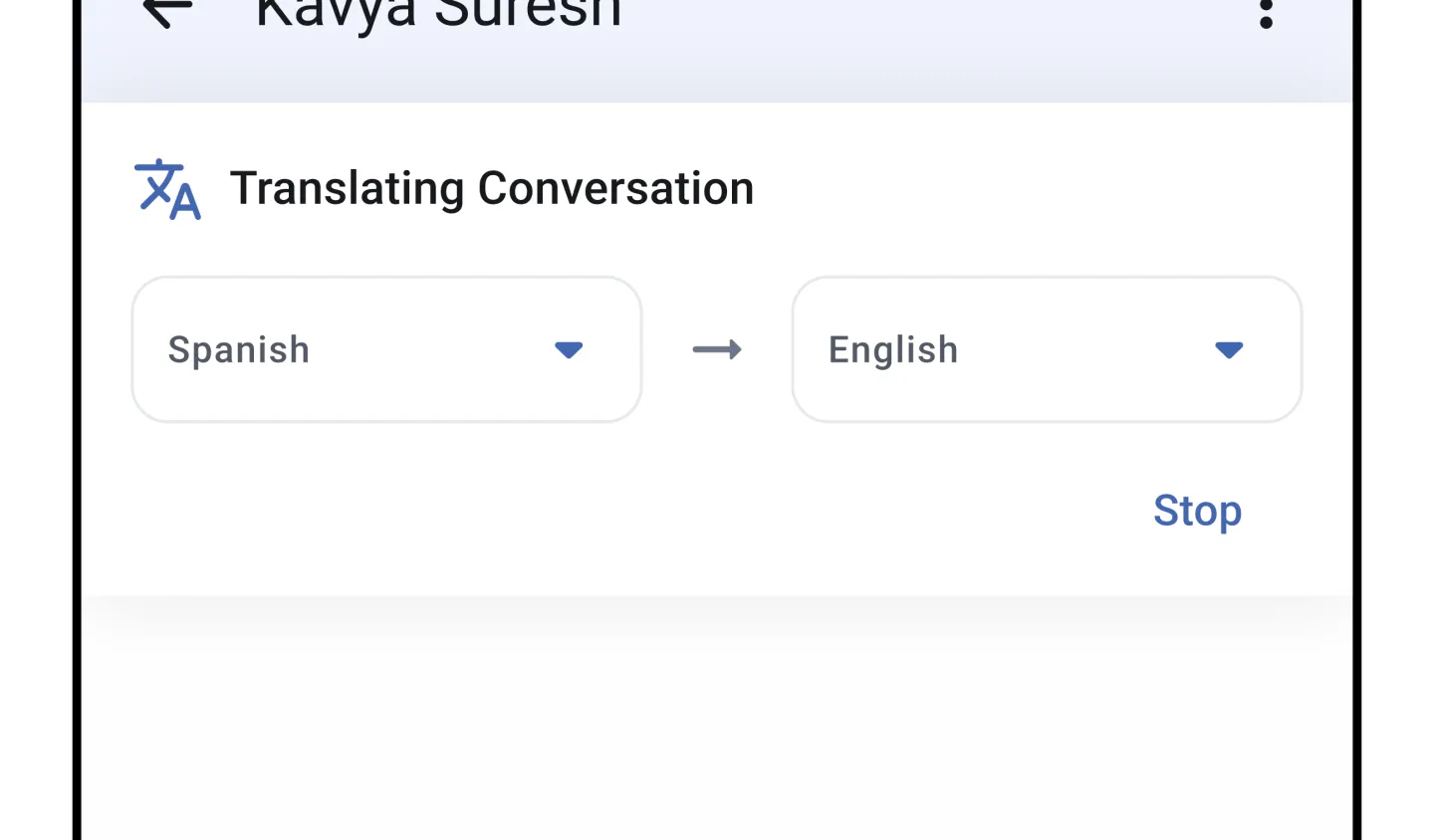 Tap Translate
A loading line runs along the top, then the banner says “Translating Conversation”.
-
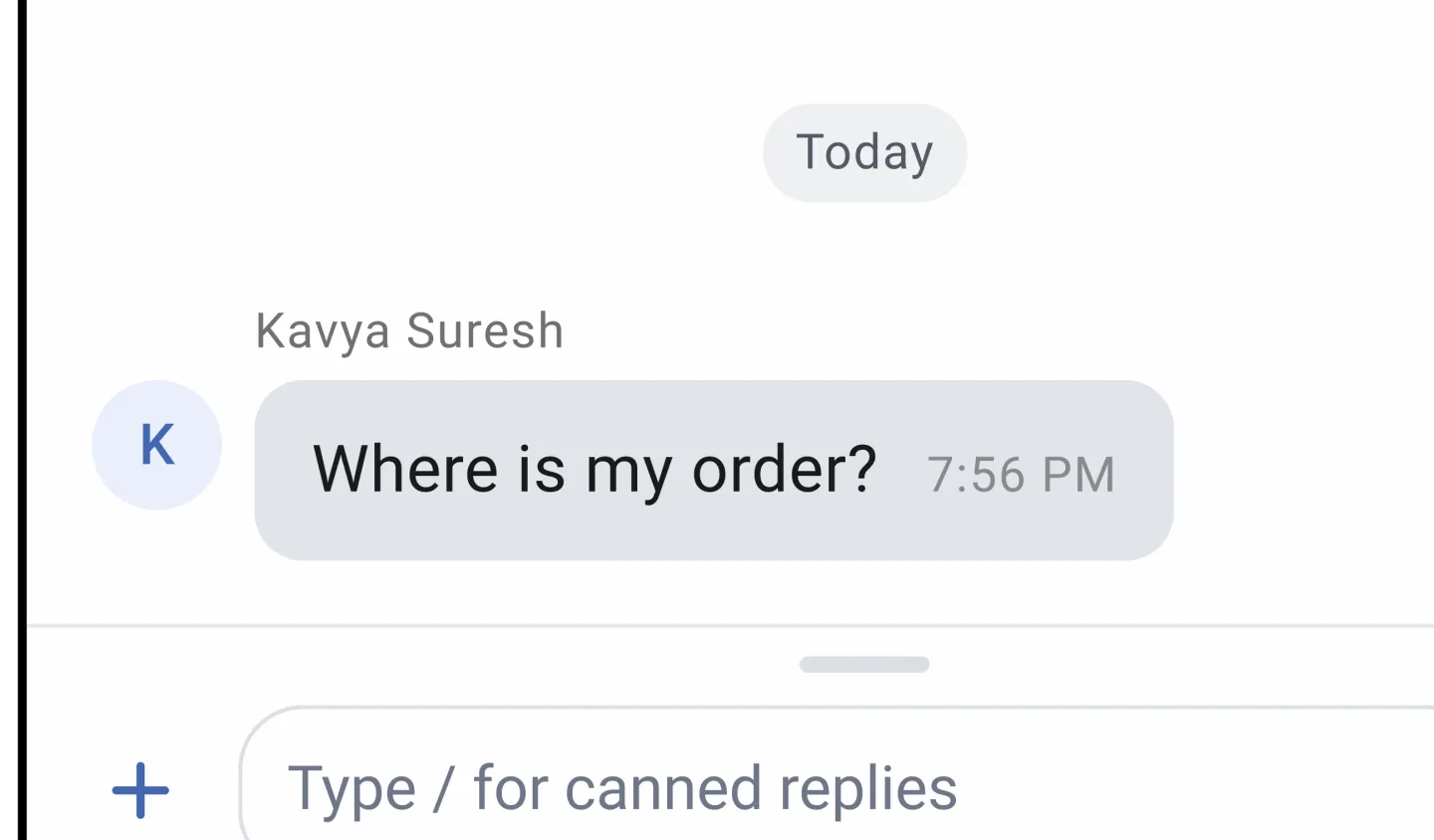 Read in English
The message itself changes language.
-
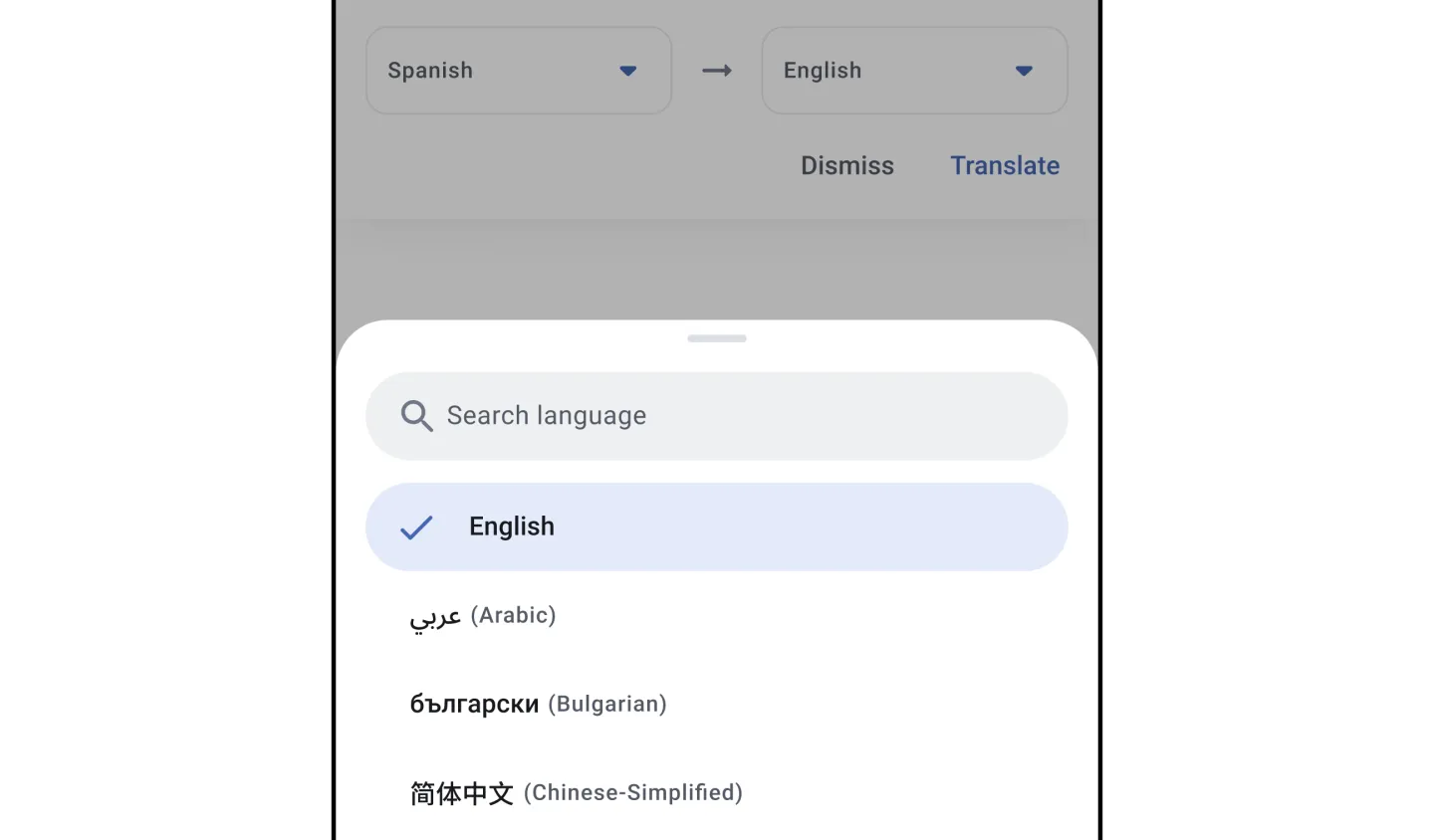 Fix a wrong guess
Tap the language, search the list and pick the right one.


Redrawn for this site.
What happened
Hundreds of uses on mobile in a two-week period, by the team’s count
That’s about five hundred, with more on the web. It’s one two-week period, not a steady rate. And version 2 came out at the same time as the AI helpers and automatic tags.
On the record
- Both versions came out, and version 2 is the current one.
- Operators found it very useful, and used it.
- Detecting the language first is part of a bigger change in the app. The app now does more of the work, instead of asking the operator to do it.
The mobile number is the team’s count over one two-week period, not a steady rate. The web number was higher and isn’t given here. Other changes to the operator app came out in the same period.
What I’d do differently
What I’d change. I’d plan version 2 the same week version 1 came out. A client’s deadline decided how version 1 looked, and it stayed that way for about a year. For all that time, operators did the machine’s work, three taps at a time. Their feedback showed what version 2 should be within weeks, but I waited for more of it to build up.
What I learned. The four-hour version was good enough to release. And it was wrong in exactly the way that showed me what version 2 should be. A quick fix is only good if it gets replaced quickly.